
Would you like to learn about ‘Undoing Recent Changes in FTM 2024? If yes, then you have surely found the perfect way to get the right solutions.
Did you know that with FTM’s ‘Turn Back Time’ amazing feature, you can undo mistakes in your family tree effortlessly? Yes, isn’t that great news! Well, you can do so even without having to manually back-track all the changes you’ve made. In this post, we have discussed the process in detail on how undoing recent changes in FTM 2024 works. So kindly read along to know more…
All About Undoing Recent Changes In FTM 2024
Family Tree Maker lets you easily undo mistakes in your family tree and make multiple corrections at once with the Turn Back Time feature. You can use Turn Back Time on your family tree to undo up to the last 5,000 of your most recent actions to restore a previous version of your tree. Even if you are merging family trees or making other major changes, you can choose ‘Turn Back Time’. You can use Turn Back Time whether or not your family tree was in use when you made the corrections.
Tip: It’s best practice; back up your FTM software regularly, whether on your computer’s hard drive or via a TreeVault account.
The following are the instructions to use the Turn Back Time feature:
- Go straight to the Current Tree tab in the Plan workspace.
- Choose the ‘Change Log’ tab from the ‘Change Log’. Family Tree Maker will display the ordered list of the most recent changes that you made to your tree.
Tip: You may print the complete Change Log. Or simply create a PDF file of the Change Log. You can do so by clicking the Print Change Log icon at the top of the tab. If the family tree is the one you regularly use, then TreeVault will have a backup copy of it.
- If an action includes numerous alterations (like tree sync), it has an information icon. You can select the icon to get a complete count and printout of the items changed.
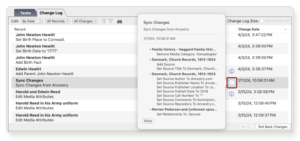
- When the list is created, it will be sorted by date; you should use the options provided to find the change:
- Sort and group by the items changed.
- In the By Date pop-up menu, select By Object.
- Then click on the arrow next to that item to see the history of all changes made.
- Limit to items changed only.
- In the All Records pop-up menu;
- Choose whether to show people who have made changes.
- Media items which had made changes. Or sources that had items changed.
- Limit to the type of change. In the All Changes pop-up menu, select whether to show only additions made, only edits made, or only deletions made.
- Select Your Change in the list.
- Then you can choose from the following actions:
- Click “Go To” if you want to change something you did to a person, media item, or source record.
- Family Tree Maker will open the related person or record for you, enabling you to make any changes/corrections to it by hand.
- If you want to return your tree back its condition to what you had before the action you just happened (and delete all changes made after that point), click “Roll Back Changes”.
- To continue, follow the next step.
- Before doing any major things to your tree, it is recommended to create a backup of your tree.
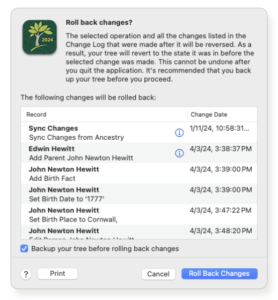
8. Finally, make sure to check “Backup Your Tree” and click on “Roll Back Changes”.
FAQS:
Ans. Family Tree Maker 2024 has new features:
- The new Connect Workspace for connecting with others about your family tree has been added as a tool.
Sharing your connected family tree database in real-time. - An AI-powered record matching feature.
- There is a new Photo Darkroom for restoring your faded or damaged photographs.
- The “Turn Back Time” can undo up to 5,000 actions.
- You have an additional 35% increased performance.
Improved syncing from Ancestry and a new user interface.
Ans. You can now share your tree with others through the Connect Workspace. Moreover, you can take your family tree research on the go with the FTM Connect App on your mobile (Tablets & Smartphones).
Ans. To restore your Family Tree Maker (FTM) files;
- You must use the File > Restore command to restore your tree.
- And then choose the correct folder to restore it to from your backup (the .FTMB file).
To restore a corrupted tree; - Run the Tools > Compact File command while performing an extended analysis on the file.
- If you were using FTM as linked to Ancestry, select ‘Restore Sync’ to restore your sync to Ancestry.
Ans. Issues with Family Tree are caused by many. You could be facing any of the following issues:
- Sync issues.
- App cache.
- Outdated software.
- Internet connection failures.
Ans. Through enhancements made to the Family Tree Maker software 2024, many performance-related problems have been greatly improved. This includes faster load times (on average, 35% less than with Family Tree Maker [2019]). Also, well-improved Ancestry.com syncing and improved media handling.
Conclusion
We trust that the above steps are helpful and you can easily manage Undoing Recent Changes in FTM 2024. Nevertheless, you can always contact our experts at the Family Tree Maker Support Number +1-888-427-8070. The team will, in no time, assist you with absolutely effective solutions.
