
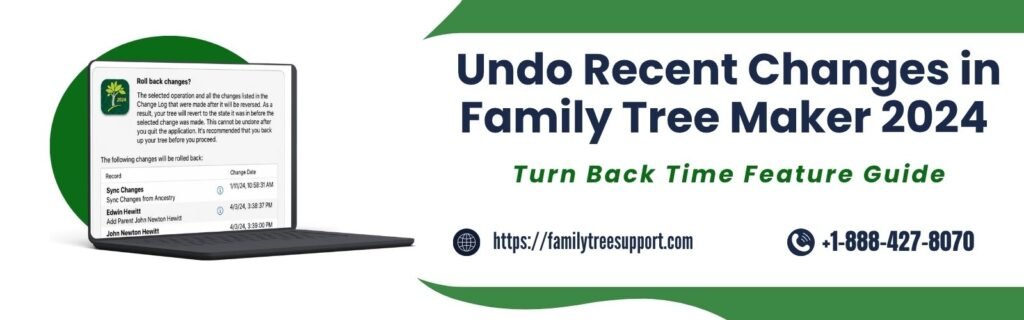
Working on your family history all day long, managing and organizing every detail for hours, and pressing the wrong button by mistake is just like wiping out the progress knowingly. This utter sabotage of months of effort can be avoided with the Undo Recent Changes in FTM 2024.
Yes, you heard right. With this advanced and smart feature, you can freely bring your creativity to the table without fear of losing it all in one go. To understand things more precisely and clearly, the guide will help you. Stay tuned to know further.
How To Undo Recent Changes In FTM 2024
Here are some of the steps given below regarding how you can undo the recent changes in FTM via turn back time feature. Go through all of them at once.
- Click on the current tree tab right on the plan workspace.
- Now click on the change log tab. Family Tree Maker showcases an ordered list of all the changes that you have made to your tree.
Note: You can also create a PDF or print the list by clicking the Print Change Log button at the top of the tab. If it is your antenna tree, a copy of this particular change log would be kept in treevault. - If your action contains multiple changes, just like a tree sync, you can see it with an information icon. You can easily click the icon to view or print a full list of all affected items.
- Use change log filtersVia object – Pay attention to all the changes in context to any specific person, media
Via record type – Item or source instead of just figuring out everything by date.
Via change type – Limit the list to changes that are made only to people, media items, and sources.
- Choose a change within the list.
- Do either of the two.
- Open the media item , related person, or source record and make the changes manually if required.
- Just restore the tree to its previous version before selecting any action, or eliminating all the changes that are made after it.
- Now review all the actions in your tree that are to be undone.
- Before doing any major changes to the tree, create a backup. To do this, select the “Backup your tree” checkbox, then click “Roll back changes.”
What Is The Turn-Back-Time Feature In FTM 2024?
Turn Back Time Feature in FTM 2024 is an advanced feature that serves as a data protection tool. It helps users undo changes and retrieve the earlier saved version. This has been built within TreeVault and helps protect your family tree from accidental deletions, incorrect merges, or anything that wasn’t required.
Major aspects of the feature
- Scheduled data backups
- Smooth recovery process
- Offline and online storage
Why Is There A Need Of Turn Back Time Feature
There are multiple reasons why it is crucial to have a Turn Back Time Feature. Some supporting reasons are listed below. Go through all of them at once.
- It helps you to revert your tree exactly the way it was before the initial mistake, without any need to undo changes one by one.
- It provides a massive running log of your 5000 actions. It retains various complex operations such as tree merges, source attachments, and syncing.
- It remembers the history deeply, even if you close and reopen the tree, or if days have passed since you made the error.
Things To Keep In Mind Before Using Turn Back Time
Here are some of the points mentioned below that you must keep in mind before using the turn back time feature
- Know that the changes that you will make after the selected point will be removed.
- Just go through the change log carefully before choosing a change to roll back.
- Some reverted changes will be required to be re-entered manually afterward.
- Cross-check the rollback in order to avoid losing crucial recent acts.
- Ensure you have selected the right person, media item or source if in case it is applicable.
- Check whether your tree is synchronized prior to making any changes.
- Do create a backup of your tree before using the turn-back-time feature.
Tips To Prevent Unwanted Changes
Here are some practical tips you can use to prevent unwanted changes. Check them out.
- Take a look at the changes list before proceeding.
- Do create a manual backup prior to using the feature.
- Do fix minor errors manually instead of choosing roll back frequently.
Procedure For Restoring Family Tree Maker 2024
The method of restoring a Family Tree Maker file totally relies on the type of backup you have. We have mentioned 3 procedures for all backup types.
To restore from backup
- First, launch the program.
- Go to the file.
- Within the chosen file to restore the window, navigate through the portion where your backup file is saved. Just point out the file and click to open.
- A restored file dialog box will open. Just name it to avoid chaos and save it.
Emergency tree restore (via trevault)
- Open Family Tree Maker.
- Now click on Connect to Tree Vault Cloud Services from the on-screen menu and log in.
- Head towards the plan workspace.
- A new tree tab will appear; there, click on emergency tree restore from treevault.
- Now click on the reason for restoring and adhere to the prompts in order to download your tree.
Downloading from Ancestry
- Click on the select tree from the drop-down list at the far left of the main toolbar and select tree browser.
- Now select your ancestry tree and locate your tree in the list.
- Now click on the download tree.
- The tree will download, and the restore tree will automatically open on the screen.
Conclusion!
This was all about how to undo recent changes in FTM 2024, along with other crucial details. If you use this software and want to learn the Turn Back Time feature in Family Tree Maker 2024, you can get help from this guide. It has covered everything you need to make an interesting and effective tree to safeguard generations in a clear and precise manner. If you need any support to resolve the issues related to the same, you can connect with the family tree support via +1-888-427-8070 around the clock, or you can also have a word with our experts using the live chat support.
Frequently Asked Questions!
To do so, you can use the Resolve Places Name tool. Instead of editing locations manually , you can prefer this tool as it scans your tree and suggests standardized place formats to apply in bulk.
Yes, it is quite possible to do so with the turnaround times 500 feature. You can easily revert your tree to the previous state if you have deleted a person or created incorrect merges by mistake.
There are various new features within FTM 2024, such as the option of syncing with Ancestry Tree, Turn Back Time, advanced color coding, and family search and Ancestry DNA integration with improvements.
Using Trevault is not compulsory but highly recommended. The basic tier allows you to back up your files safely, and the media plus tier provides cloud backups for all your photographs and documents.