
There are a number of issues you can encounter with the family tree maker, including slow opening, sudden crashes, display of sync errors, and more. All these issues result from file corruption or database inconsistencies. As a user, you can repair a Tree File in Family Tree Maker and enjoy a seamless performance without putting much effort. For better understanding, you can refer to this guide to gain insight into how to resolve the issues quickly.
Repair A Tree File In Family Tree Maker With These Methods
If your Family Tree Maker becomes corrupted, there are several reasons, including sudden shutdowns, computer crashes, malware, and storage issues such as bad sectors on the hard drive. One of the best ways to fix a damaged file is to restore a backup from before the damage. Keep a backup of your tree to prevent data loss. If you don’t have a backup, try the ways given below.
Compacting Your File
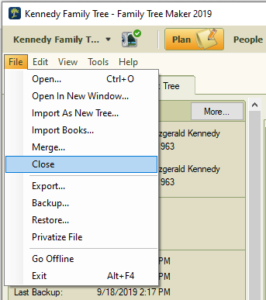
- First , close the tree you have opened by selecting File> Close.
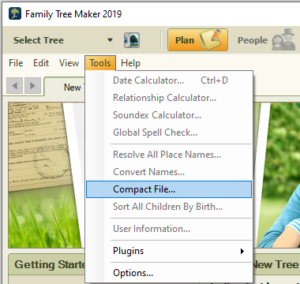
- From the menu bar, choose Tools, and then select Compact File.
- Now browse to your saved tree, select it, and click Open.
- Within the Compact File dialog box, check Perform extended analysis.
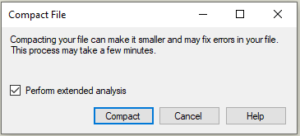
- Click Compact and allow the process to finish.
- After completion, a confirmation window will show the percentage of space recovered. Click ok.
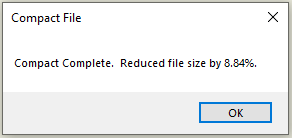
- Now repeat the process till the reported reduction is 0.00%
- Open your family tree again and check whether the original issue still exists.
(Note: Close the file for better results)
Downloading From Ancestry
If you are able to sync your tree with Ancestry and you don’t have a reliable backup to restore, you can look for downloading a fresh, corruption-free copy of your Ancestry tree into Family Tree Maker. You can begin the download from the location given below: the plan workspace, the tree browser (available in FTM 2019 and FTM 2024), or the Ancestry sync icon.
Downloading a tree from the Plan workspace:
- Click on the plan workspace, open it, and select the new tree tab.

- Click the Download tree from Ancestry, locate the tree that you want to download, and then select the download tree button.
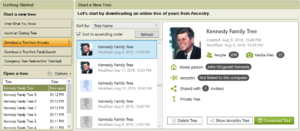
- After the sync, a weather report will pop up on your screen; go through the available download options. Provide a unique name for your tree to distinguish it from the existing file, configure the desired sync settings, then click download.
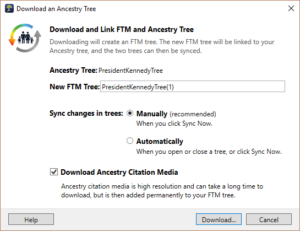
- The download procedure will begin. It may take some time depending on the tree size and internet connection. After the process is complete , a confirmation window will pop up indicating that the download was successful.
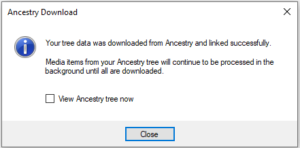
Downloading a Tree using Tree Browser (FTM 2019 and FTM 2024 only)
- Open the View menu or click on the Select Tree drop-down menu on the left side of the main toolbar, then select Tree Browser.
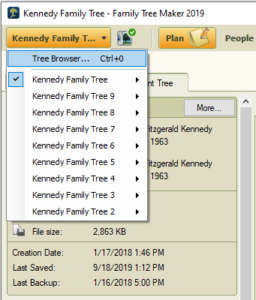
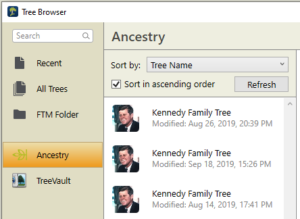
- From the tree browser window, click on the ancestry category in the left pane. A whole list of ancestry trees will appear on the right.
- Select the tree you want to save to your computer, then click the download tree button in the lower right corner.
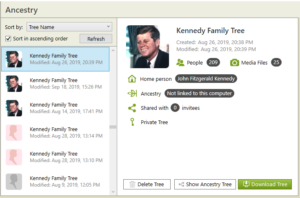
- Family Tree Maker will start downloading the selected tree. This process will take a few minutes depending on your tree size and internet connection. After the download is complete , the tree will automatically open in the people workspace.
Using The Ancestry Sync Icon
- Click the Ancestry Sync icon at the right of the main toolbar and choose Download from Ancestry from the drop-down menu.
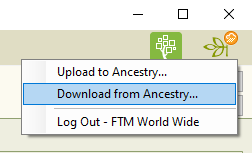
- From the Download from Ancestry window, choose the tree you want to download and then click Download Tree.
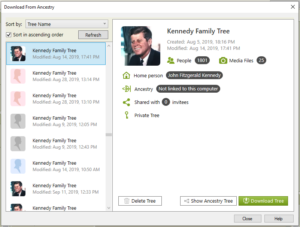
- The tree will start downloading now. Once the download is complete, it will open in the People workspace , ready for you to continue working.
Exporting your file as a GEDCOM
- Click on the File menu, open it, and choose Export.
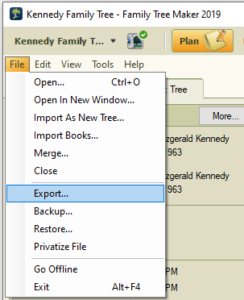
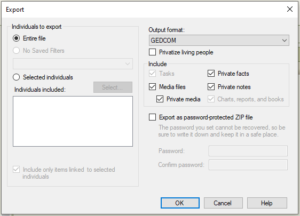
- If a password protection message pops up on your screen , click on Continue. Within the export window, select Entire File, change the output format into GEDCOM, and ensure every option under the include section is properly checked.
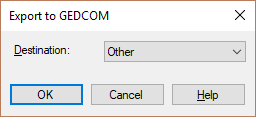
- After the opening of the export to GEDCOM dialog, select Other from the drop-down menu and click on ok.
- Navigate to the folder where you want to save the exported file, enter a file name, and click on Save.
- After completing the export, import the newly created GEDCOM file back into Family Tree Maker to create a fresh copy of your tree.
Conclusion!
It is very easy to repair a Tree File in Family Tree Maker 2017, 2019, and 2024. Whether you have compacted the file, downloaded a fresh copy from Ancestry, or rebuilt your tree using a GEDCOM file, all of these methods can help you restore your data and easily improve the perfomance. By taking some simple precautions, you can keep your family tree make file secure, healthy, and ready for the ongoing research.
If you are planning to explore more features, learn advanced tools, or troubleshoot extra issues, look at our Family Tree Maker 2019 complete guide. It features everything, including installation, backups, treesync, media management, and performance optimization.
 Call Family Tree Maker Support: +1-888-427-8070
 Live Chat with a Family Tree Maker Expert
Frequently Asked Questions!
Yes, there are several ways to recover it easily by compacting the file, restoring the backup, downloading a fresh copy from Ancestry, or re-importing a GEDCOM file.
It is better to compact it regularly, especially after making major changes or before creating a backup.
Yes, you must always have a backup before repairing your tree. This will protect your data if anything happens.